

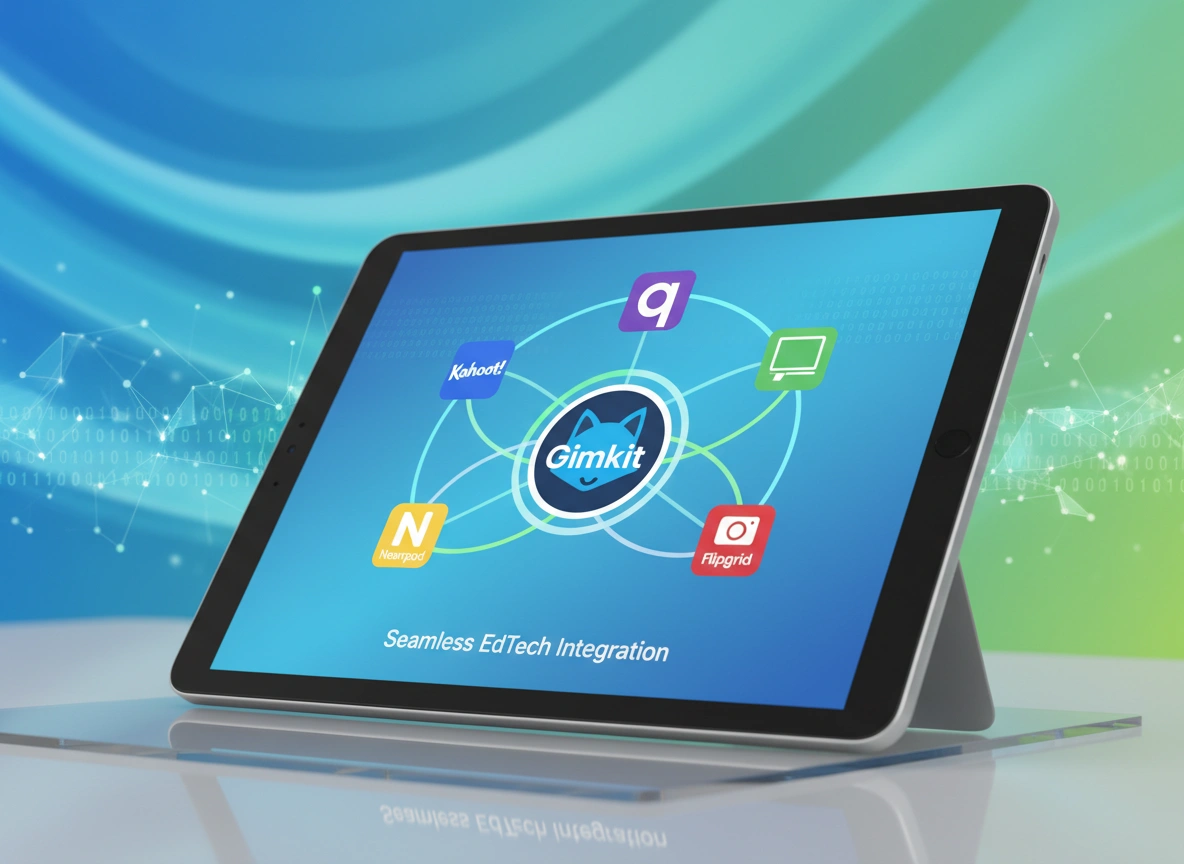
Gimkit has rapidly become a favorite tool for educators seeking to boost student engagement through gamified learning. This live quiz platform transforms traditional review sessions into exciting challenges where students earn in-game cash to spend on upgrades and power-ups. But its real power unfolds when you connect it with other educational technology platforms. Integrating Gimkit with tools you already use can create a more cohesive, powerful, and streamlined digital classroom.
This guide will show you how to connect Gimkit with popular EdTech tools like Google Classroom, Kahoot, and Flipgrid. We will explore the benefits of these integrations, provide practical examples for your classroom, and offer tips to help you get the most out of this dynamic combination. By the end, you will see how a well-integrated tech stack can save you time and supercharge student learning.
What is Gimkit and Why Do Educators Love It?
Before diving into integrations, let’s understand what makes Gimkit so effective. Created by a high school student, Gimkit was designed from the ground up to be engaging. Unlike traditional quiz formats where students simply answer questions, Gimkit adds a layer of strategy and economics. Students answer questions to earn virtual currency, which they can then invest in power-ups that help them earn more money or affect other players’ progress.
This unique approach offers several benefits:
- Increased Engagement: The game-like structure and competitive elements capture students’ attention and motivate them to participate actively. Students are often so focused on earning in-game cash that they forget they are learning.
- Student-Paced Learning: In modes like “Assignments,” students can work through questions at their own pace. The platform provides immediate feedback, allowing them to learn from their mistakes and reinforce correct answers until they achieve mastery.
- Customization and Flexibility: Teachers can create their own question sets (called “Kits”) or import them from platforms like Quizlet. Gimkit also offers various game modes, from fast-paced team battles to strategic individual challenges, catering to different learning objectives and classroom dynamics.
- Data-Driven Insights: After each game, teachers receive a detailed report showing student performance. This data helps identify knowledge gaps and informs future instruction, allowing for targeted support where it’s needed most.
Integrating Gimkit with Google Classroom
Google Classroom is a cornerstone of many digital learning environments. Integrating Gimkit with it creates a seamless workflow for assigning activities and tracking progress. This connection simplifies the process for both you and your students, keeping everything organized within a familiar interface.
How to Connect Gimkit and Google Classroom
Gimkit makes this integration straightforward. You can connect your Google account directly, which then allows you to import your classes.
- Sign in with Google: When you create a Gimkit account or sign in, choose the “Continue with Google” option. This links your accounts automatically.
- Import Your Classes: Navigate to the “Classes” tab on your Gimkit dashboard. You will see an option to “Import from Google Classroom.”
- Select Your Classes: A window will appear listing your active Google Classroom classes. Select the ones you want to import into Gimkit and click “Import.” Your class rosters will now be available in Gimkit.
Benefits of the Google Classroom Integration
Connecting these two platforms streamlines your workflow and enhances the student experience.
- Effortless Class Management: Importing rosters saves you from manually entering student names. When new students join your Google Classroom, you can easily sync the roster in Gimkit to keep it updated.
- Simplified Assignment Posting: Once you create a Gimkit Assignment (an asynchronous, student-paced activity), you can directly share it to your Google Classroom stream. When setting up the assignment, Gimkit provides a shareable link. Simply create an assignment in Google Classroom and paste the link.
- Centralized Grading: While Gimkit doesn’t automatically sync grades to Google Classroom’s gradebook, the workflow is still simplified. After students complete a Gimkit Assignment, you can view the report, note their scores, and manually enter them into the Google Classroom gradebook. This keeps all assessment data in one place.
Classroom Scenario: Imagine you are teaching a unit on the solar system. You create a Gimkit Kit with questions about planets, stars, and galaxies. You set it as an assignment with a due date. After creating the assignment in Gimkit, you share the link directly to your “Science” Google Classroom. Students can access the activity with one click, complete it at their own pace, and you can easily track their progress from your Gimkit dashboard.
Using Gimkit and Kahoot Together
While Gimkit and Kahoot are often seen as competitors, they can be used together to target different learning goals. Kahoot excels at fast-paced, whole-class review where speed and accuracy are key. Gimkit, with its strategic depth, is excellent for deeper engagement and repeated practice.
A Complementary Approach
There is no direct technical integration between Gimkit and Kahoot. Instead, you can use them strategically at different points in a lesson or unit to vary activities and keep students engaged.
- Kahoot for Introduction: Use Kahoot at the beginning of a unit to introduce new concepts in a fun, low-stakes way. Its simple format is great for a quick pulse-check to see what students already know.
- Gimkit for Reinforcement: Use Gimkit for mid-unit review or end-of-unit practice. The various game modes allow for repeated exposure to the material in an engaging format, helping students achieve mastery.
How to Leverage Both Platforms
- Create Parallel Content: Develop question sets on the same topic for both platforms. You can often use the same questions and answers, adapting them slightly for each platform’s format. This consistency reinforces the learning objectives.
- Sequence the Activities: Start with a Kahoot game to energize the class and introduce a topic. A few days later, use a Gimkit game like “Trust No One” or a team-based mode to encourage deeper strategic thinking and collaboration around the same content.
- Gather Different Data: Use the data from both platforms to get a complete picture of student understanding. Kahoot can show you initial misconceptions, while Gimkit reports can reveal how students’ understanding develops over time through repeated practice.
Classroom Scenario: In a high school history class covering World War II, you could start the unit with a Kahoot game focused on key dates and figures. Later in the unit, you could launch a Gimkit “Humans vs. Zombies” game where students must answer more complex questions about the causes and effects of major battles to survive. This combination keeps the review process fresh and targets different levels of cognitive engagement.
Pairing Gimkit with Flipgrid for Deeper Learning
Flipgrid (now Microsoft Flip) is a video discussion platform where students respond to prompts with short video recordings. Integrating Gimkit with Flipgrid creates a powerful loop of knowledge acquisition and creative application. Students can demonstrate their learning from a Gimkit activity by explaining their understanding on Flipgrid.
Creating a Learn-and-Explain Workflow
Like the Kahoot pairing, this integration is more about process than technology. You use Gimkit for the knowledge-building phase and Flipgrid for the demonstration and communication phase.
- Run a Gimkit Game: Start with a Gimkit game to review a topic. This ensures students have the foundational knowledge they need.
- Create a Flipgrid Prompt: Create a prompt in Flipgrid that asks students to explain a concept from the Gimkit activity. For example, if the Gimkit reviewed vocabulary words, the Flipgrid prompt could ask students to use three words correctly in a sentence and explain their meanings.
- Link the Two Activities: Share the link to the Flipgrid prompt at the end of the Gimkit game or post it in your LMS. Frame it as the second part of the assignment.
Advantages of This Combination
- From Recall to Creation: This workflow moves students up Bloom’s Taxonomy. Gimkit focuses on remembering and understanding, while Flipgrid pushes them toward applying, analyzing, and creating.
- Develops Communication Skills: Students don’t just have to know the answer; they have to articulate it. This builds public speaking, communication, and critical thinking skills.
- Authentic Assessment: A Flipgrid video provides a much richer, more authentic assessment of student understanding than a multiple-choice question alone. You can hear their thought process and identify misconceptions in a way that data reports cannot show.
Classroom Scenario: A middle school English teacher runs a Gimkit game reviewing literary devices like metaphors, similes, and personification. Afterward, students go to Flipgrid to respond to a prompt: “Find an example of a metaphor or simile in your independent reading book. In your video, read the example and explain why it is effective.” This connects the abstract concept from Gimkit to a tangible application.
Tips for Maximizing Gimkit in Your Classroom
Integrating Gimkit is just the first step. To truly make it a transformative tool, consider these tips:
- Explore All Game Modes: Don’t just stick to the classic mode. Try “The Floor is Lava” for a high-energy review or “Humans vs. Zombies” for collaborative strategy. Different modes suit different learning objectives.
- Empower Students to Create: Use the “KitCollab” feature to have students create their own Gimkit questions. This is a fantastic way to review content, as students must understand the material well enough to write valid questions and distractors.
- Use Assignments for Homework: Gimkit Assignments are perfect for homework or asynchronous learning. They allow students to work at their own pace and ensure they reach a certain level of mastery before finishing.
- Focus on Growth, Not Just Winning: Remind students that the goal is learning. Celebrate effort and improvement shown in the game reports, not just who earned the most virtual cash. This helps foster a positive and supportive learning environment.
By thoughtfully integrating Gimkit with tools like Google Classroom, Kahoot, and Flipgrid, you can create a more dynamic, efficient, and effective learning ecosystem. These connections transform standalone activities into a cohesive educational experience, saving you time and empowering your students to take ownership of their learning journey.
Please visit website for more info.
