

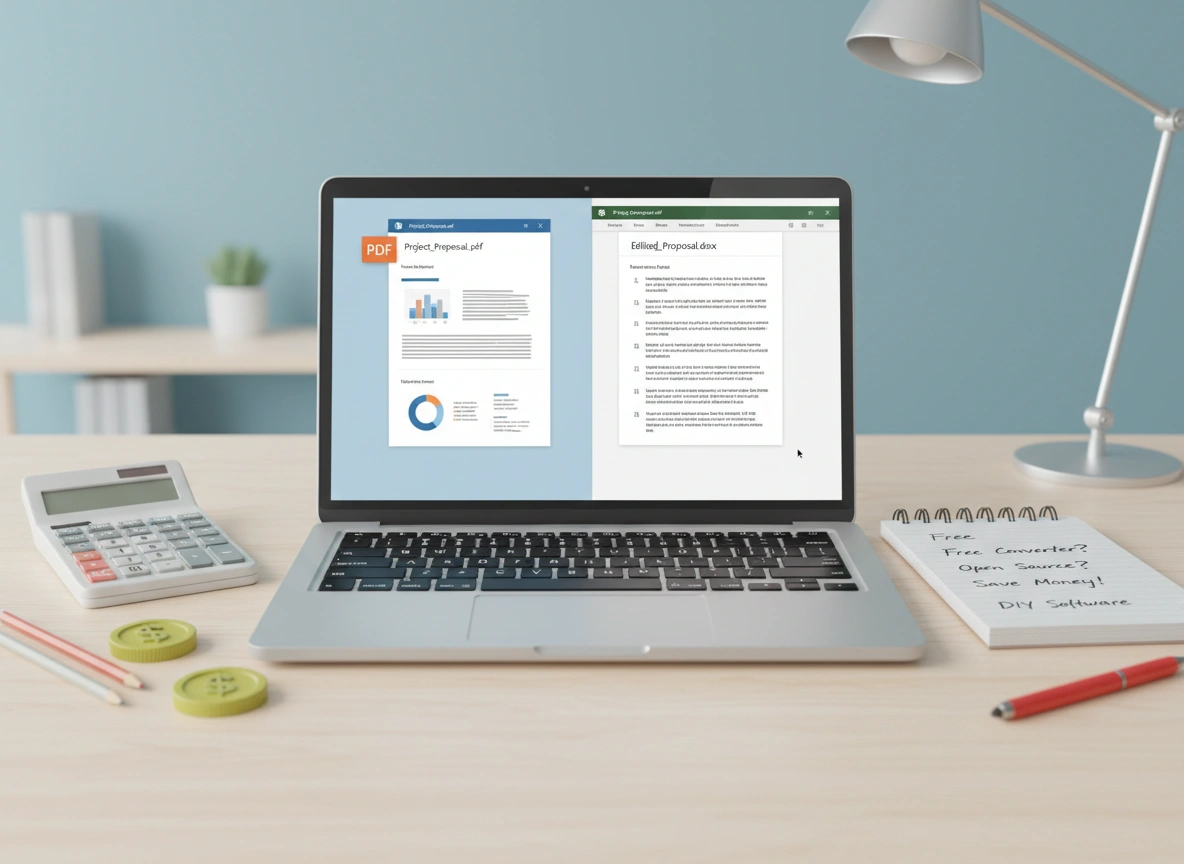
The Portable Document Format (PDF) is a cornerstone of modern business and academic communication. It preserves document formatting across different devices and operating systems, ensuring that what you send is exactly what the recipient sees. But this strength is also its greatest weakness. What happens when you need to make a change to a PDF, but you don’t have the original source file? Direct editing can be frustrating and often requires expensive software. This is where PDF to Word conversion becomes an essential skill.
Converting a PDF to an editable Word document allows you to make changes, update information, or repurpose content without starting from scratch. For students, freelancers, and small businesses operating on a tight budget, finding cost-effective ways to manage this process is crucial. This guide explores budget-friendly tools and methods for converting PDFs to Word, empowering you to handle document edits efficiently without breaking the bank.
The Challenge of Editing PDFs Directly
PDFs were designed to be a final, static format. Think of them as a digital printout. This design choice makes direct editing a complex task. Without specialized software, making even a small text change can feel impossible.
Why Are PDFs So Hard to Edit?
The structure of a PDF file is fundamentally different from a word processing document. A Word document understands text as a continuous flow of characters, paragraphs, and pages. A PDF, on the other hand, often sees text as individual objects placed at specific coordinates on a page. It also handles images, tables, and other graphical elements as separate layers.
This structural difference leads to several common challenges:
- Text Flow and Formatting: When you try to edit text directly in a PDF viewer, you might find that adding a single word throws off the entire line or paragraph alignment. The text doesn’t automatically reflow like it does in Word.
- Font Issues: If you don’t have the exact font used in the original PDF installed on your computer, the editing software will substitute it. This can lead to significant changes in the document’s appearance and layout.
- Complex Layouts: Documents with columns, tables, and intricate image placements are particularly difficult to edit. Elements can shift, overlap, or lose their structure entirely when you attempt to modify them.
- Software Costs: Professional-grade PDF editors like Adobe Acrobat Pro provide a comprehensive suite of tools, but they come with a significant subscription cost. For users who only need to make occasional edits, this expense is hard to justify.
These challenges make converting the file to a more flexible format, like a Microsoft Word document, the most practical solution for most users.
Budget-Friendly PDF to Word Conversion Methods
You don’t need to invest in expensive software to get the job done. Several free and low-cost methods are available that deliver excellent results for most standard documents.
Using Microsoft Word Itself
Many people don’t realize that modern versions of Microsoft Word (Word 2013 and newer) have a built-in PDF conversion feature. If you already have a Microsoft 365 subscription or a recent version of the desktop application, you may not need any other tool. Word can open a PDF file and automatically convert it into an editable Word document.
This method works best for text-heavy documents with simple layouts, such as reports, letters, and articles. While it can handle some images and tables, complex formatting may not always translate perfectly.
Leveraging Google Docs
Google Docs is another powerful, free tool that is part of the Google Workspace ecosystem. Much like Word, it can open and convert PDF files. You simply upload the PDF to your Google Drive, then open it with Google Docs. The platform performs an optical character recognition (OCR) scan on the document and converts it into editable text.
This is an excellent option for collaboration, as you can easily share the converted document with others. It’s particularly effective for extracting text from image-based or scanned PDFs, though formatting fidelity can be a mixed bag.
Dedicated Online Converters
A quick web search reveals dozens of free online PDF to Word converters. These browser-based tools are incredibly convenient because they require no software installation. You simply upload your PDF, wait for the conversion to complete, and download the resulting Word file.
Some of the most popular and reliable free online converters include:
- Smallpdf: Offers a user-friendly interface and a suite of tools beyond just PDF to Word conversion. It has a free daily usage limit.
- iLovePDF: Another popular choice with a clean interface and fast processing. It also provides options for merging, splitting, and compressing PDFs.
- Soda PDF: Provides both online and desktop tools, with its online converter being a quick and easy solution for simple conversions.
While convenient, it’s important to be mindful of privacy when using online tools. Avoid uploading documents containing sensitive or confidential information, as you are sending your file to a third-party server.
Step-by-Step Conversion Guide
Let’s walk through how to use these budget-friendly methods to convert your PDF.
Method 1: Converting with Microsoft Word
- Open Microsoft Word: Launch the application on your computer.
- Go to “Open”: Click on the
Filetab in the top-left corner, then selectOpen. - Browse for Your PDF: Locate the PDF file on your computer and select it.
- Confirm Conversion: Word will display a notification informing you that it is about to convert your PDF into an editable Word document. The message will warn that the process may take a while and that the resulting document might not look exactly like the original PDF, especially if it contains many graphics. Click
OK. - Edit and Save: Word will process the file and open it as a new document. You can now edit the text, images, and formatting. Once you are finished, go to
File>Save Asand save the document in the.docxformat.
Method 2: Converting with Google Docs
- Upload to Google Drive: Log in to your Google account and navigate to Google Drive. Click
New>File uploadand select the PDF you want to convert. - Open with Google Docs: Once the file is uploaded, right-click on the PDF in your Drive. From the context menu, select
Open with>Google Docs. - Wait for Conversion: Google Docs will automatically perform OCR and open the file as a new, editable document. The original PDF will remain untouched in your Drive.
- Review and Edit: The converted document will open in the Google Docs editor. The text will be fully editable. Images from the original PDF will also be included, though formatting might need adjustment.
- Download as Word: After making your edits, click on
File>Download>Microsoft Word (.docx). This will save a copy of the edited document to your computer.
Tips for Ensuring Formatting Accuracy
The biggest hurdle in PDF to Word conversion is preserving the original layout. No conversion is perfect, but you can take steps to get a cleaner result and minimize the time spent on clean-up.
- Choose the Right Tool for the Job: For simple, text-based documents, Microsoft Word or Google Docs often suffice. For PDFs with complex tables, columns, and graphics, a dedicated online converter might produce better results. Experiment with different tools to see which one handles your specific document type best.
- Check for Scanned vs. Native PDFs: A “native” PDF is one created directly from software like Word or InDesign. A “scanned” PDF is an image of a physical document. Scanned PDFs require Optical Character Recognition (OCR) to turn the image of the text into actual, editable characters. Most modern converters, including Google Docs and premium online tools, have OCR built-in. If your text is not selectable, you have a scanned PDF and need a tool with OCR.
- Clean Up After Conversion: Always plan for a few minutes of clean-up. Common issues include extra line breaks, incorrect spacing, and text that has been placed in text boxes. Go through the document to fix these minor errors.
- Use the “Clear Formatting” Feature: If you’re struggling with stubborn formatting, select the problematic text in Word and use the
Clear All Formattingoption (an eraser icon in the Home tab). This will strip away any underlying code and allow you to reapply styles manually. - Review Headers, Footers, and Page Numbers: These elements often get converted as regular text in the main body of the document. You may need to delete them and re-insert them using Word’s header and footer tools to ensure they appear correctly on every page.
Conclusion: Smart Solutions for a Common Problem
The need to edit a PDF is a frequent challenge, but it doesn’t have to be an expensive one. By understanding the nature of PDFs and leveraging the powerful, free tools already at your disposal, you can effectively manage document edits without straining your budget.
Whether you use the built-in capabilities of Microsoft Word, the cloud-based convenience of Google Docs, or a specialized online converter, a workable solution is just a few clicks away. While you may need to spend a little time tidying up the converted file, this effort is minimal compared to the cost of professional PDF software or the frustration of retyping a document from scratch. Embracing these cost-effective methods for PDF to Word conversion is a smart move for anyone looking to work more efficiently and economically.
Please visit this website for more info.
